PaxStudio — The Professional Dispatch & Loadsheet Module for phpVMS 7
The Problem with the Default SimBrief Integration
If you’ve been using phpVMS 7 for a while, you know the issue: the built-in SimBrief integration is functional, but it leaves a lot to be desired. There’s no real loadsheet calculation, no weight-based cargo planning, no structured overview of active bookings — and above all, no unified dispatch experience that feels like real airline operations.
PaxStudio was built exactly for this case: as a complete, standalone replacement for the default SimBrief integration in phpVMS 7. Not a workaround, not a patch — but a full dispatch center that integrates seamlessly into your existing phpVMS installation.
PaxStudio was originally developed for the German Sky Group Virtual Airline — but it works with any phpVMS 7 installation.
What is PaxStudio?
PaxStudio is a phpVMS 7 module that provides the following core features:
- Hub: Overview of all active bookings with OFP status
- Loadsheet Studio: Professional passenger and cargo planning based on real aircraft weights
- Smart Cargo Calculation: MZFW- and MTOW-based, live and in real time
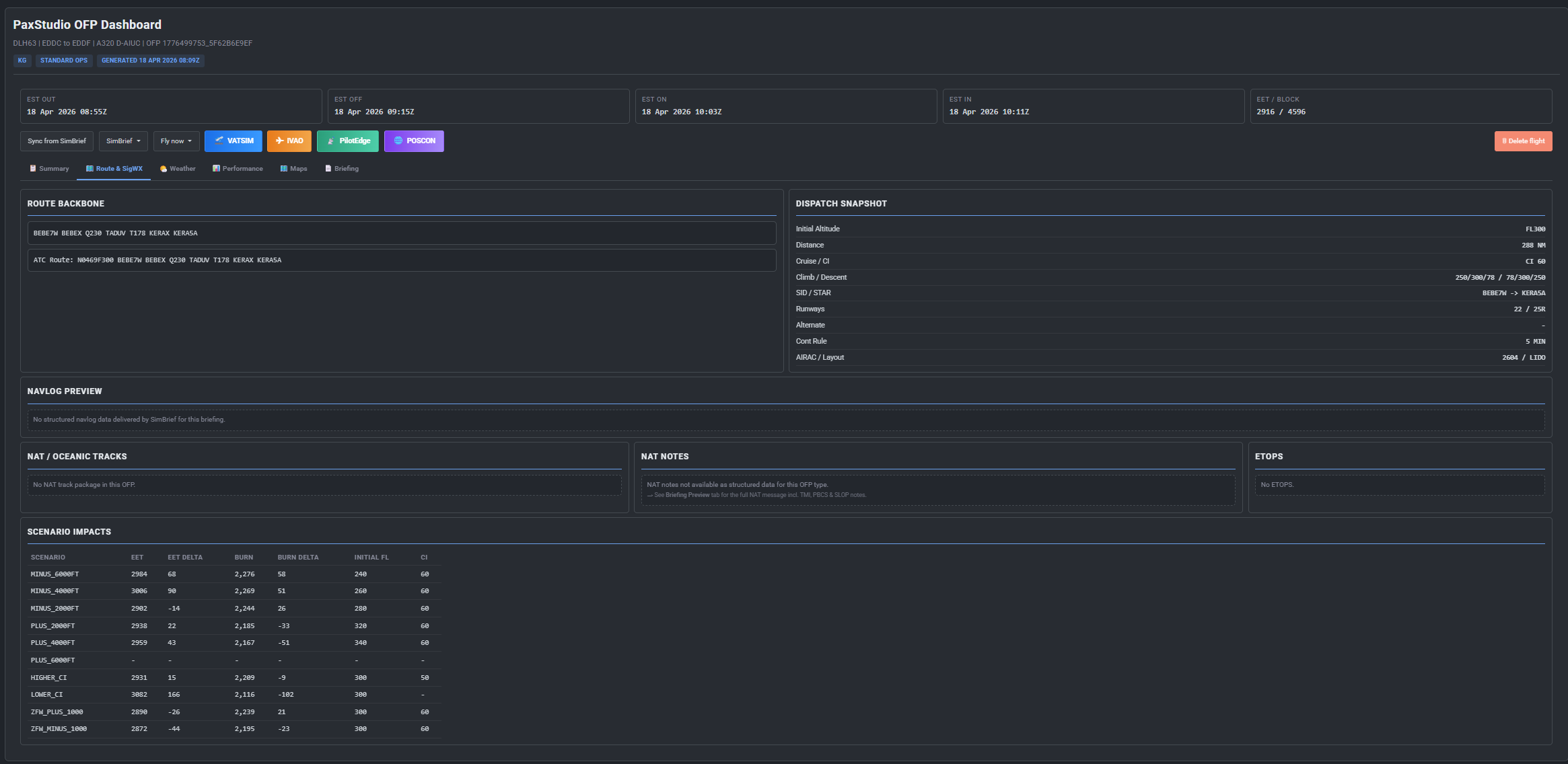
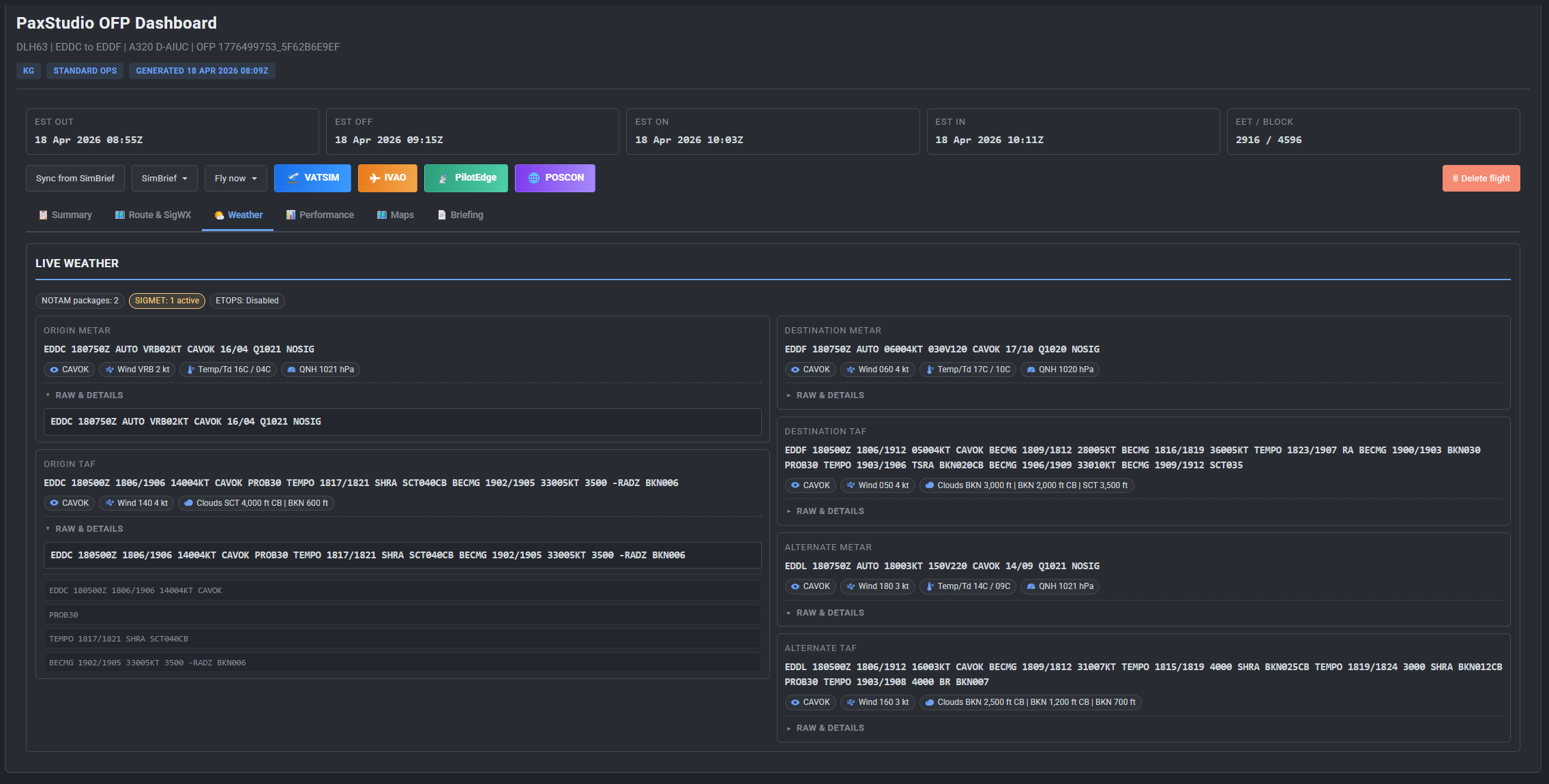
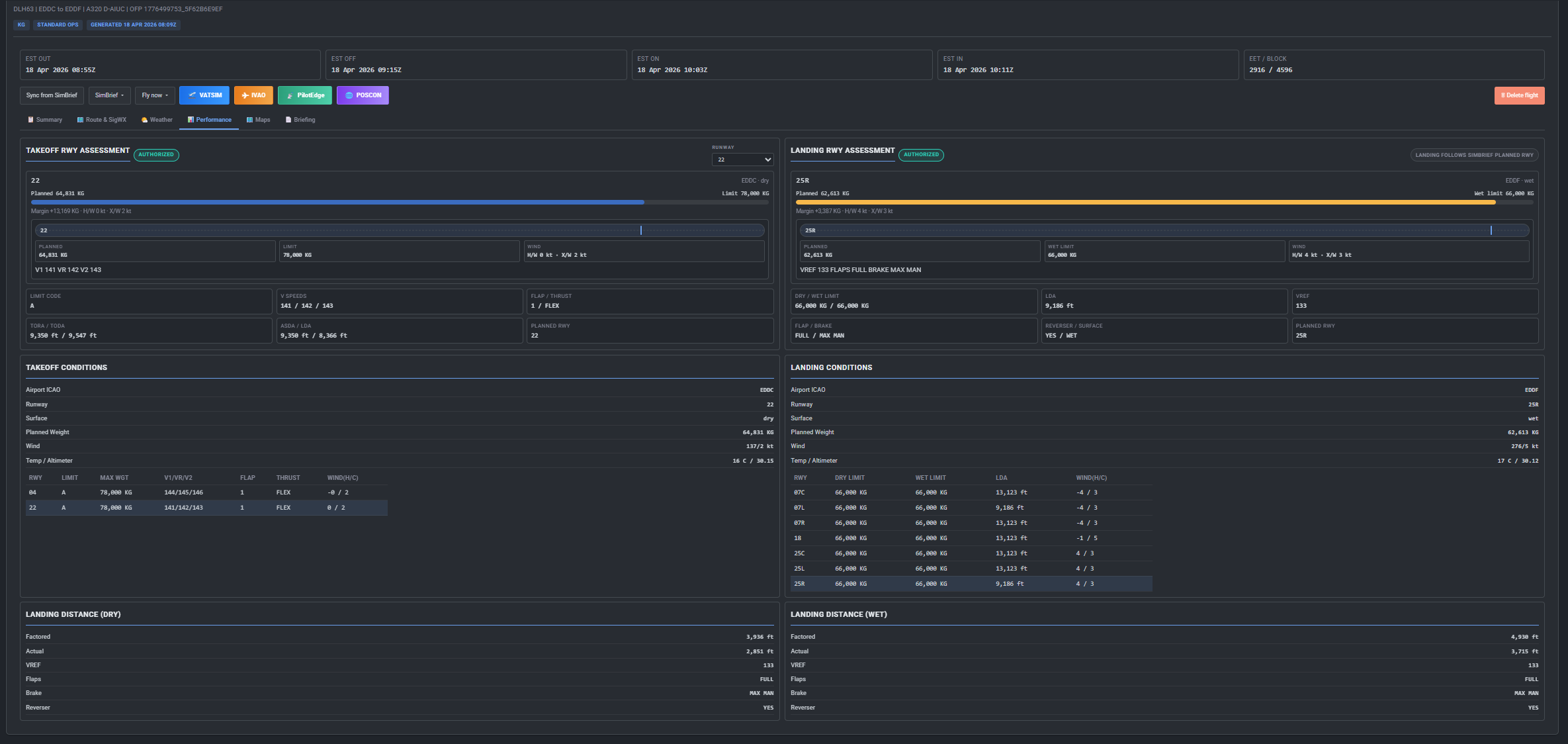
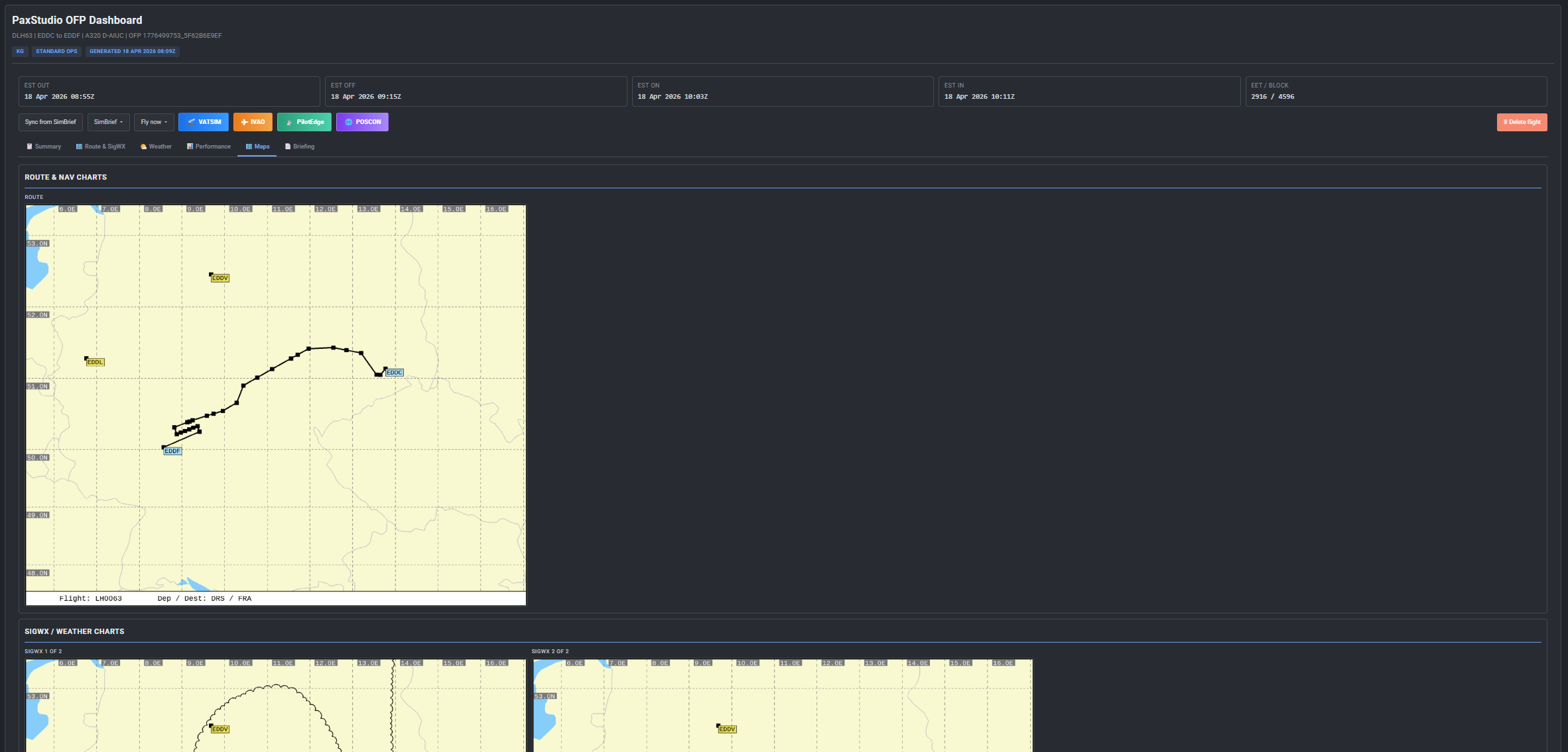
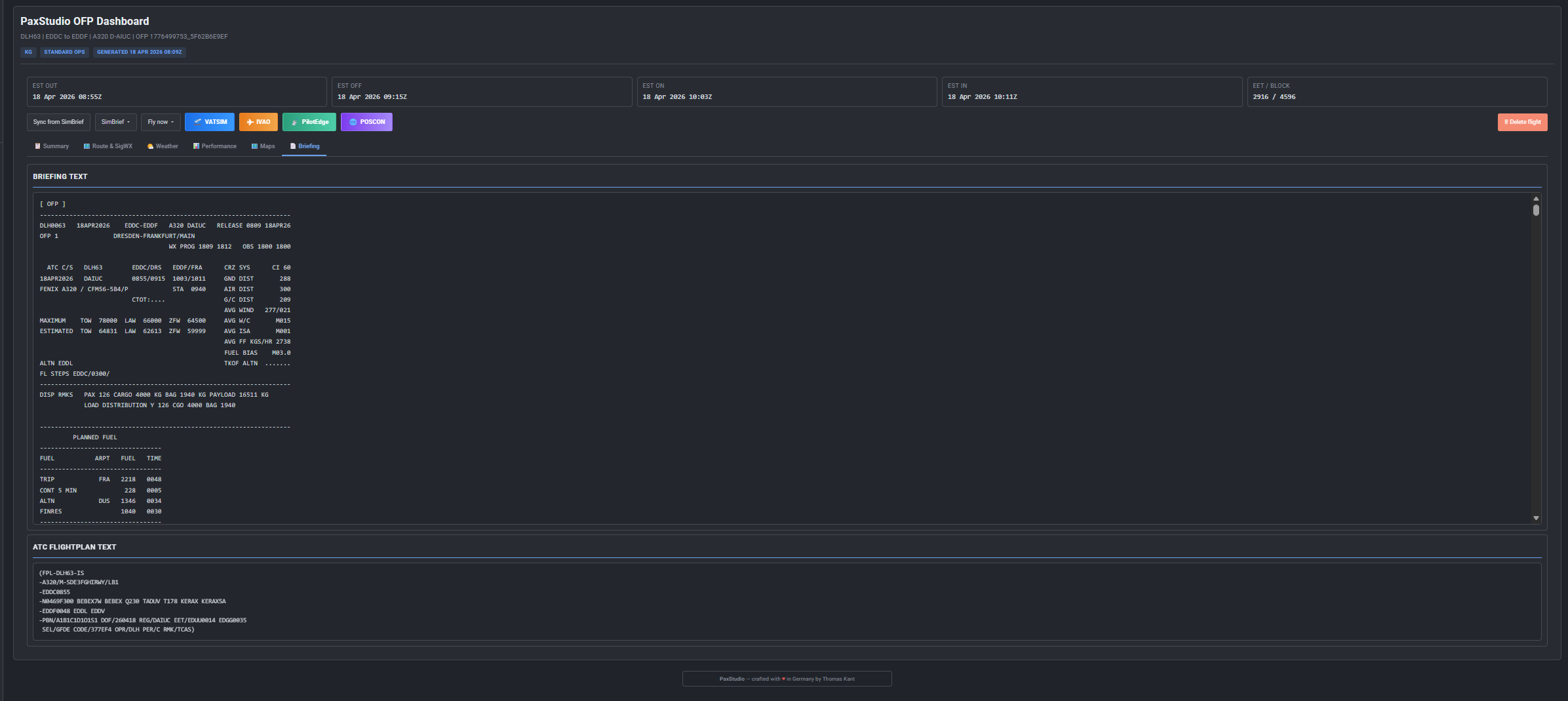
- OFP Dashboard: 6-tab interface with weather, performance, maps, route, and full SimBrief briefing
- SimBrief Redirect Middleware: All existing
/simbrief/*links are automatically redirected to PaxStudio — no changes to existing templates needed - Multi-Theme Support: SPTheme, Seven, Disposable_v3 — each in light and dark mode
- PIREP Form: Pre-filled from SimBrief data, with per-class PAX counts
- Admin Panel: Fetch, import, and manage SimBrief airframe weights
Requirements
Before installing PaxStudio, make sure the following requirements are met:
- phpVMS 7.x (latest stable version recommended)
- PHP 8.1 or higher
- SimBrief Account with a valid API key (available for free at simbrief.com)
- DisposableBasic — Provides enhanced fleet and airport data. The aircraft weights (DOW/MZFW/MTOW) that PaxStudio uses for its smart cargo calculation are typically managed through DisposableBasic
- DisposableSpecial — Complements the dispatch workflow with additional features such as dynamic fares and extended flight planning
- FTP access or file manager for uploading
- Write permissions on the
modules/directory of your phpVMS installation
Note: PaxStudio technically works without DisposableBasic and DisposableSpecial — in that case, the fare-based fallback logic is used for cargo calculation. However, for full functionality (especially weight-based cargo planning), both modules are recommended.
Availability & Donation
PaxStudio is not available for free. A minimum donation of 8.00 EUR is required for use. The donation helps to actively develop and maintain PaxStudio.
Important when donating:
Please send the donation as “Friends & Family” (not as a purchase/goods) so that no PayPal fees are deducted and the full amount arrives. Alternatively, a bank transfer is also possible.
PayPal: PN or Discord
After receiving the donation, you will be granted access to the download.
Features in Detail
1. The Hub — /paxstudio
The Hub is the control center. Here, the pilot can see all currently booked flights at a glance — clear, organized, and action-oriented.
The layout follows the familiar flight board style: Each booking appears as its own card with flight number, route, aircraft type, and current dispatch status.
OFP Status Badges:
| Badge | Color | Meaning |
|---|---|---|
| OFP Ready | Green | A valid SimBrief flight plan exists — ready for departure |
| OFP Pending | Amber | No SimBrief flight plan generated yet, or outdated |
The buttons in the Hub are smart: They always show the contextually appropriate next action. If a flight has no OFP yet, the button reads “Go to Loadsheet”. If an OFP exists, it switches to “Open OFP”. This guides the pilot intuitively through the dispatch process without having to think about it.
Deleting a booking = full cleanup:
When a booking is deleted from the Hub, PaxStudio performs a complete cleanup:
- The bid (flight booking) is removed
- All associated SimBrief records in the database are deleted
- The active session is cleared
No data clutter, no orphaned entries.
2. Dispatch Loadsheet Studio — /paxstudio/loadsheet
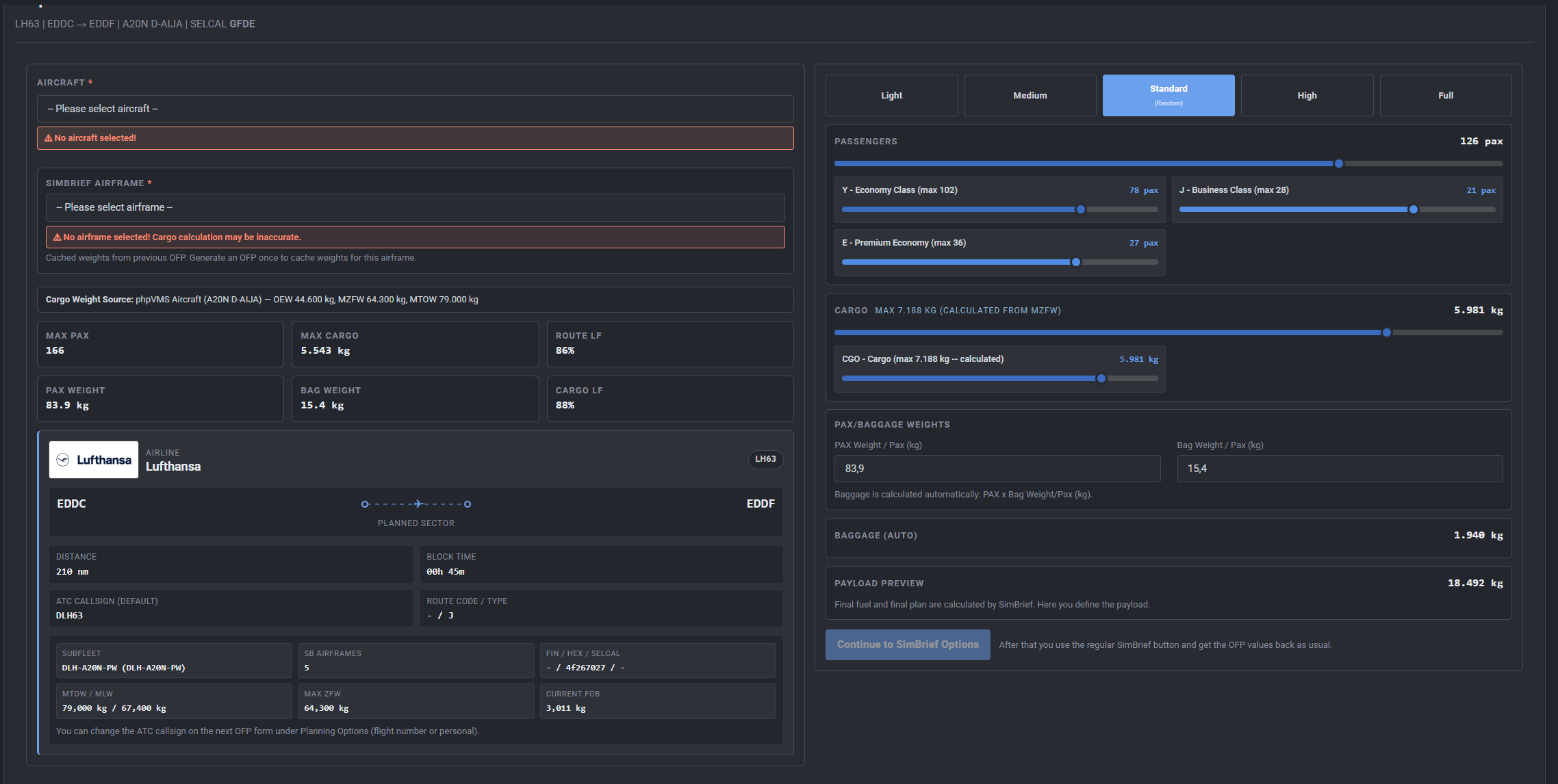
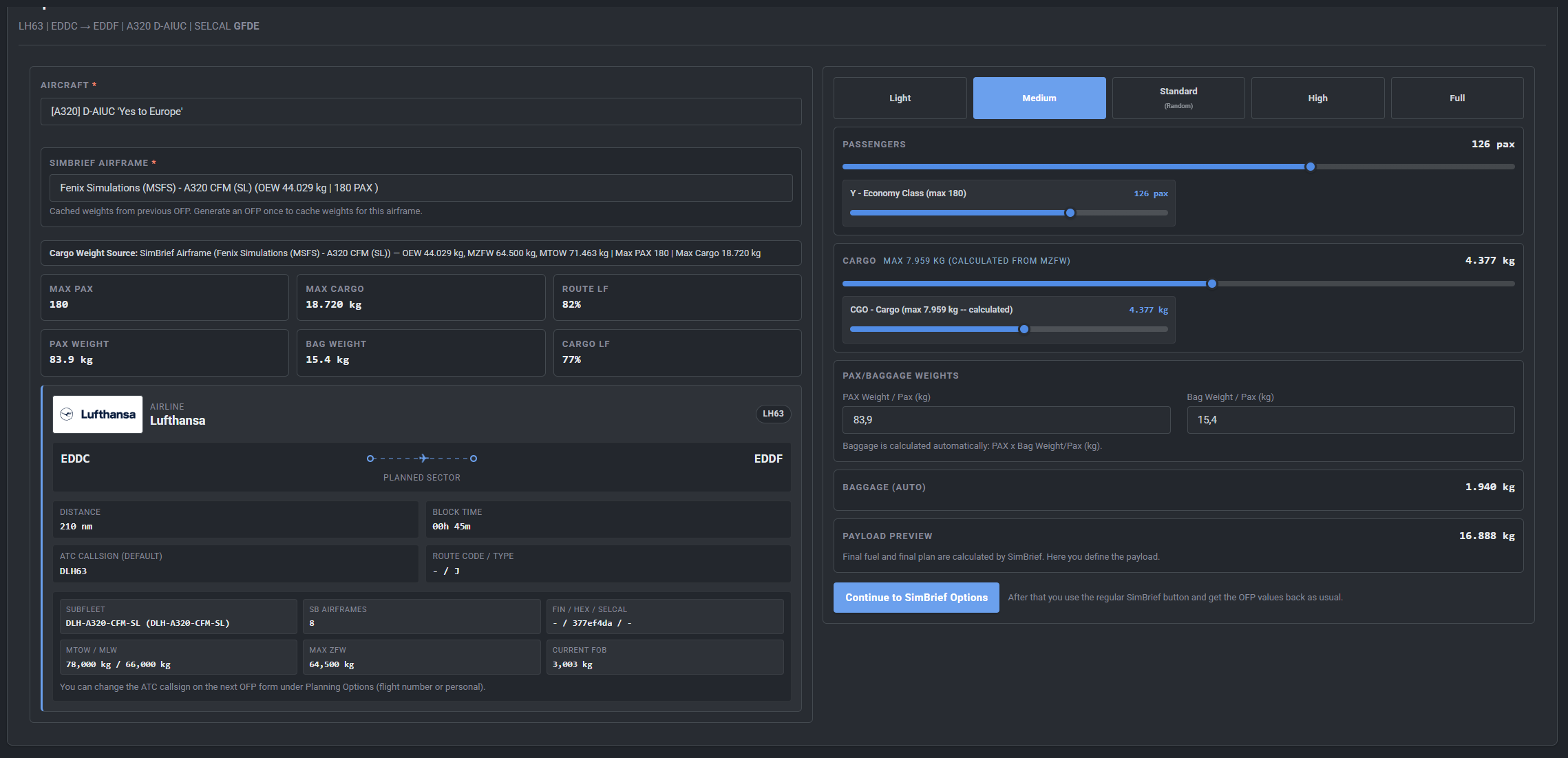
The Loadsheet Studio is the heart of the user experience. Here, the pilot plans passengers, baggage, and cargo — and immediately sees what this means for the aircraft weights.
The interface is split into two columns:
Left Column — Aircraft & Flight Overview:
- Aircraft Selector: If multiple subfleets are available for the flight, they can be switched here
- Flight Metrics: Flight number, route, scheduled departure time
- Certified Weights — directly from the aircraft data:
- DOW (Dry Operating Weight): Empty weight of the aircraft including crew and equipment
- MZFW (Maximum Zero Fuel Weight): Maximum weight without fuel
- MTOW (Maximum Takeoff Weight): Maximum takeoff weight
- FOB (Fuel on Board): Planned fuel amount from the SimBrief OFP
These values are not just for display — they feed directly into the cargo calculation (more on that below).
Right Column — Load Configuration:
This is where the actual planning happens. At the top are preset buttons for quick configuration:
| Preset | Load Factor | Description |
|---|---|---|
| Light | 45% | Low load |
| Medium | 70% | Medium load |
| Standard / Random | ~86% +/- 20% | Realistic variation around 86% |
| High | 95% | Nearly full |
| Full | 100% | Full capacity |
The Standard/Random preset is particularly realistic: It draws a random load factor in the range of 66–100%, simulating real booking fluctuations.
PAX Slider with Cabin Class Breakdown:
The main PAX slider controls the overall load. Below it are individual sub-sliders per cabin class:
- Economy
- Business
- Premium Economy
- First Class
Each class only appears when a fare with capacity >= 1 is configured for it (calculation starts at 1 — 0 = no slider).
Dynamic Slider Colors provide immediate visual feedback on load:
| Range | Color |
|---|---|
| 0% – 50% | Light Blue |
| 50% – 75% | Blue |
| 75% – 90% | Dark Blue |
| 90% – 100% | Orange |
Orange signals: Nearly or fully loaded — visually intuitive without text.
3. Smart Cargo Calculation — The Core Feature
This is the feature that sets PaxStudio apart from simple loadsheet solutions.
The available cargo capacity is not a fixed number. It is derived dynamically from the physical weight limits of the aircraft — just like in real aviation.
The Formula:
Available Cargo = min(MZFW Limit, MTOW Limit)
Where:
MZFW Limit = MZFW - DOW - (PAX x PAX Weight) - (PAX x Bag Weight)
MTOW Limit = MTOW - DOW - FOB - (PAX x PAX Weight) - (PAX x Bag Weight)
What does this mean in practice?
- The MZFW limit calculates how much cargo is structurally possible — independent of fuel
- The MTOW limit calculates how much cargo is possible given the takeoff weight — including fuel
- The minimum of both limits is the actual available cargo weight
Live Update: As soon as the pilot moves the PAX slider and books more passengers, the cargo maximum drops immediately and in real time. So if you book 180 instead of 150 passengers, you can immediately see that less capacity remains for cargo. No manual recalculations, no overloading errors.
Fallback Logic: If no weight data is stored for an aircraft (DOW, MZFW, MTOW = 0), PaxStudio falls back to fare-based capacity. The maximum cargo amount then simply equals the capacity of the assigned cargo fare. Less precise, but functional.
4. Fare Configuration — The Foundation
The fare configuration is the most important step when setting up PaxStudio. Incorrectly or incompletely configured fares lead to classes not appearing or cargo not being available. Therefore, here is a very detailed explanation.
phpVMS distinguishes two fare types:
| Type | phpVMS Value | Meaning |
|---|---|---|
| Passenger | 0 | Passenger fare |
| Cargo | 1 | Cargo fare |
For PAX fares (Type 0):
capacity= maximum seats for this cabin class- Example Economy:
150 - Example Business:
24 - Example First Class:
8
- Example Economy:
amount= ticket price per passenger (can be0if no revenue is calculated)
For Cargo fares (Type 1):
capacity= maximum cargo in kilograms- Example:
5000for 5 tons maximum cargo
- Example:
amount= price per unit (can be0if no cargo revenue is to be calculated)
Mandatory rules — must be followed:
- Fare must be assigned to the flight — a fare that only exists globally but is not assigned to the flight will be ignored by PaxStudio
- Fare must be assigned to the subfleet — same rule: no subfleet assignment = no display
capacitymust be >= 1 — calculation starts atcapacity = 1. A fare withcapacity = 0is completely ignored by PaxStudio. No slider, no cargo field- Both conditions (flight AND subfleet) must be met
Special behavior:
- No PAX fare with
capacity > 0present → PaxStudio automatically activates cargo-only mode. The loadsheet then shows only cargo planning, without PAX sliders - No fare present → PaxStudio recognizes the flight as a training flight. No loadsheet is required — the pilot can start directly
This logic allows flexible use: cargo flights, mixed flights, pure PAX flights, and training flights are all handled correctly without manual switching.
5. OFP Dashboard — 6 Tabs
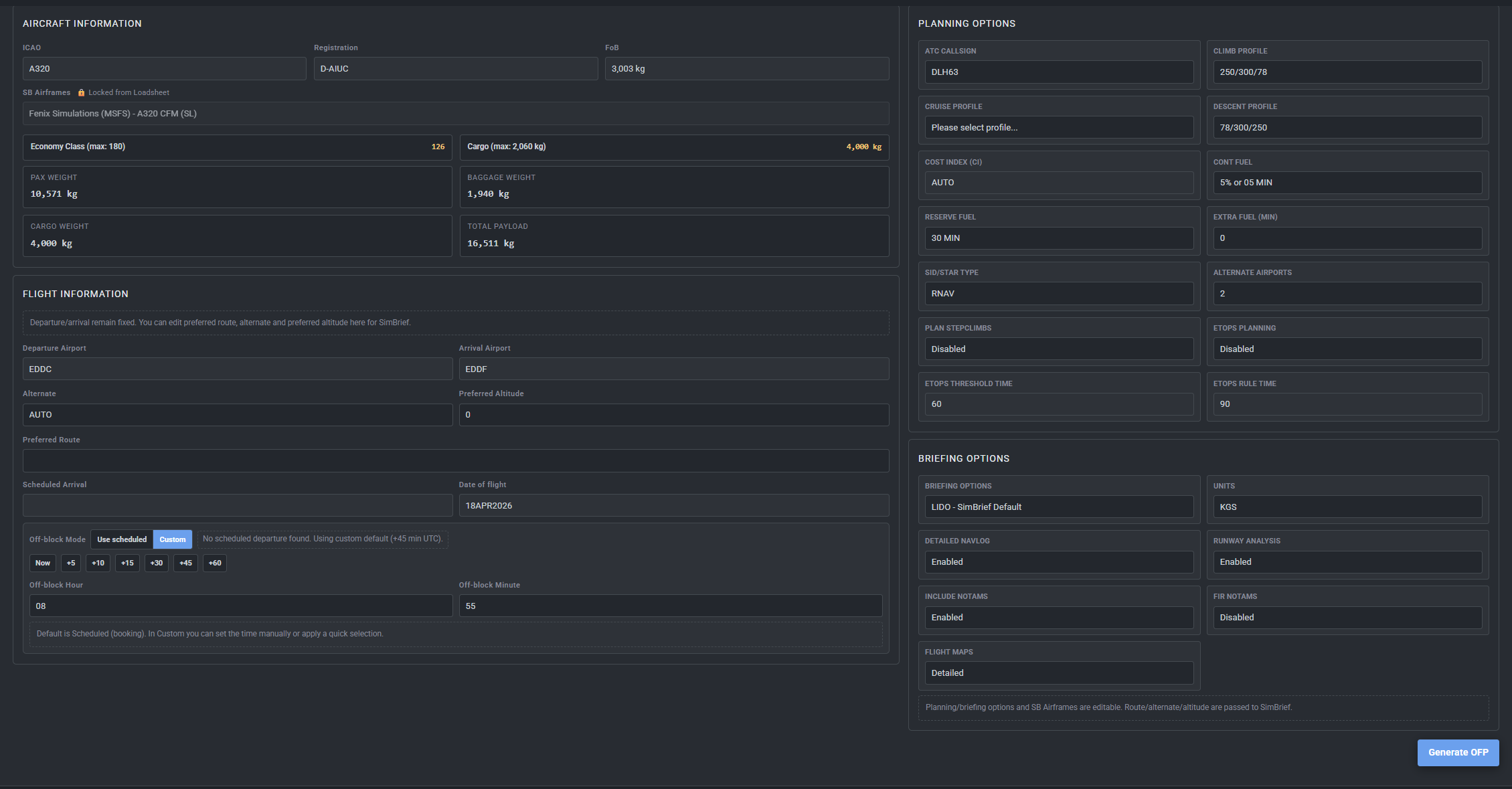
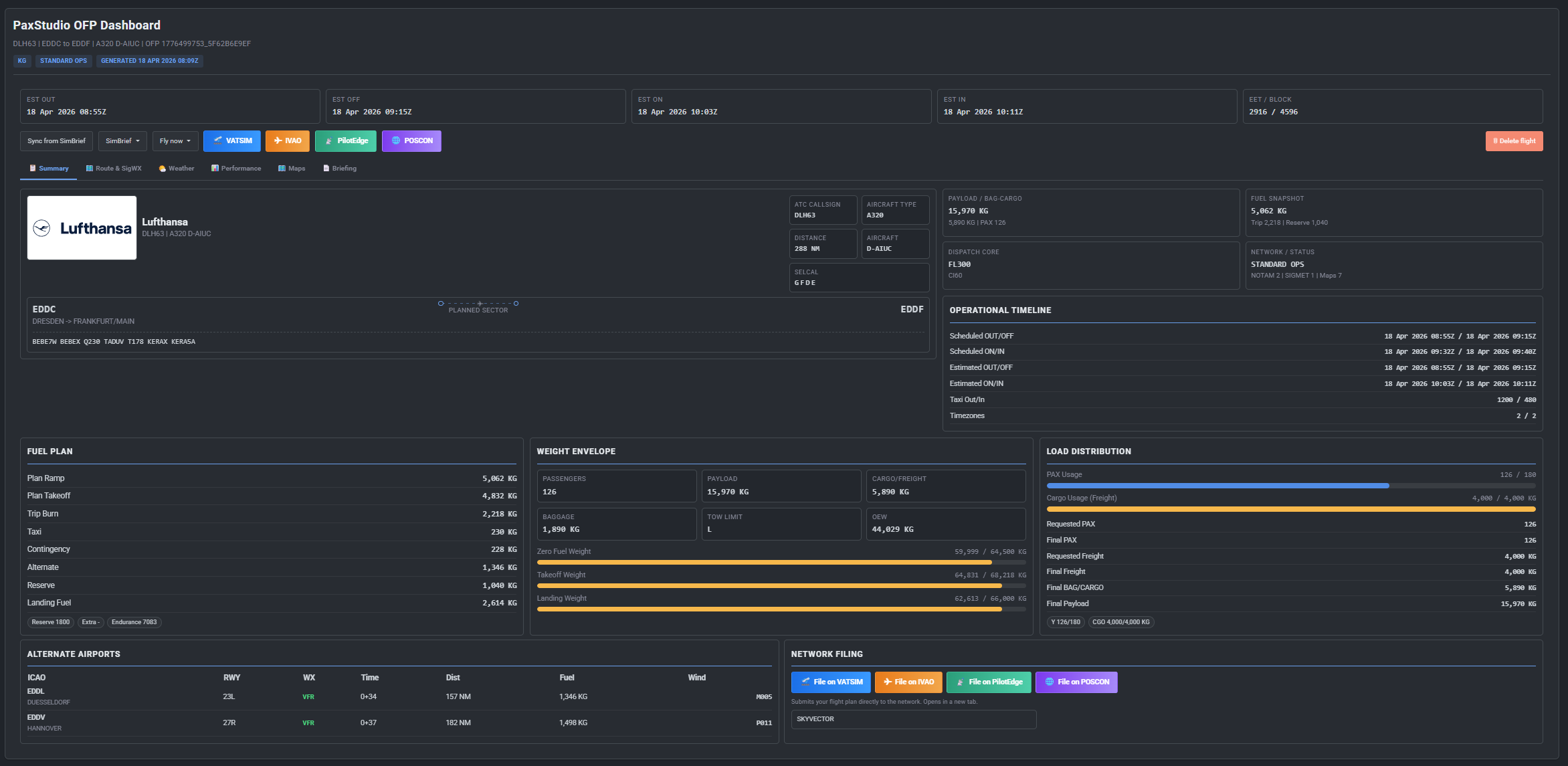
After generating the SimBrief flight plan, the OFP Dashboard opens. It is divided into six tabs that cover all relevant information for a professional dispatch.
Tab 1: Summary
The Summary tab is the overview page of the flight plan. It contains:
- Quick Info Cards: Flight number, route, aircraft, ETD/ETA, planned block time
- Action Bar: Direct access to the most important actions (start PIREP, print briefing, delete booking)
- Sector Graphic: Visual representation of the route with departure and arrival
- Weight Envelope with Color Bars: Shows ZFW (Zero Fuel Weight), TOW (Takeoff Weight), and LDW (Landing Weight) as colored bars relative to certified limits — instantly visible whether all weights are in the green zone
- Load Distribution: Distribution of payload by cabin and cargo
- Network Filing Buttons: Direct links for filing the flight plan with VATSIM, IVAO, or other networks
Tab 2: Route & SigWX
Shows SimBrief maps for:
- The planned route with waypoints
- Significant Weather (SigWX) — the official severe weather chart from the SimBrief OFP
Tab 3: Weather
This tab provides all relevant weather data for the flight:
- METAR and TAF for:
- Departure airport
- Destination airport
- Alternate airport
- Flight Categories — color-coded according to international standards:
| Category | Color | Meaning |
|---|---|---|
| VFR | Green | Visual Flight Rules — good visibility |
| MVFR | Blue | Marginal VFR — reduced visibility |
| IFR | Red | Instrument Flight Rules — poor visibility |
| LIFR | Purple | Low IFR — very poor visibility |
- SIGMET Warnings: Active Significant Meteorological Information for the route is highlighted
Tab 4: Performance
The Performance tab provides detailed information for takeoff planning:
- Runway Analysis: Available runways with length specifications
- Weight Limits per Runway: Shows whether TOW and LDW are permissible for the available runways
- Wind Components: Headwind/tailwind and crosswind for each runway configuration
Tab 5: Maps
Shows the complete flight plan maps from SimBrief:
- Overview map of the entire route
- Detail maps for departure and approach areas
Tab 6: Briefing
The complete SimBrief OFP text — exactly as generated by the SimBrief system. For those who prefer the classic text briefing or want to print it out.
6. SimBrief Redirect Middleware
PaxStudio includes a middleware that automatically intercepts all existing /simbrief/* URLs and redirects them to the corresponding PaxStudio pages.
This means: If you already have templates or links pointing to the old SimBrief routes, you don’t need to change anything. PaxStudio handles the redirect transparently.
Redirect Table:
| Old URL | New URL (PaxStudio) |
|---|---|
/simbrief/generate?flight_id=X |
/paxstudio/loadsheet?flight_id=X |
/simbrief/ofp?id=X |
/paxstudio/ofp?id=X |
/simbrief |
/paxstudio |
Important: API routes under /api/* are not affected by the middleware. External systems using the phpVMS API are not impacted by the redirect.
7. Multi-Theme Support
PaxStudio supports the most common phpVMS 7 themes — each in light and dark mode:
| Theme | Light Mode | Dark Mode |
|---|---|---|
| SPTheme | ✓ | ✓ |
| Seven | ✓ | ✓ |
| Disposable_v3 | ✓ | ✓ |
The implementation uses CSS Custom Properties: PaxStudio reads the theme variables of the active theme and automatically adapts colors, backgrounds, and accents. There are no hardcoded color values — the module blends in visually.
The font is also inherited from the active theme. PaxStudio always looks like a native part of the installation.
8. PIREP Form
The PIREP form in PaxStudio is pre-filled from the SimBrief OFP:
- Flight number, route, aircraft — automatically populated
- Planned times as default values
- Per-class PAX counts: Economy, Business, Premium Economy, and First Class are recorded as separate fields — for detailed analytics in your VA statistics
- Cargo weight: Taken directly from the loadsheet, editable for actual values
9. Admin Panel — Managing SimBrief Airframe Weights
PaxStudio comes with its own admin panel, accessible under Admin → Add-ons → PaxStudio. This is where SimBrief airframe weights are centrally managed — the foundation for the smart cargo calculation.
What are SimBrief Airframes?
SimBrief stores weight data (DOW, MZFW, MTOW) for each aircraft type. PaxStudio can fetch this data directly from SimBrief and cache it locally, so it’s immediately available during loadsheet calculation.
Bundled Airframe Database:
PaxStudio ships with a pre-built JSON file (Install/paxstudio_airframe_weights.json) that already contains 323 SimBrief airframes with complete weight data. This file can be uploaded directly after installation via the “Import JSON” button in the admin panel — giving you instant access to weight data for the smart cargo calculation without having to fetch each airframe individually from SimBrief.
Admin Panel Functions:
- SimBrief Pilot ID: Enter your SimBrief Pilot ID — required for API access
- Fetch Airframe Weights: Fetch the latest weight data (PAX and cargo variants) for all configured aircraft types directly from SimBrief
- JSON Import: Import the bundled JSON file or a previously exported file — the fastest way to load all airframe weights at once
- JSON Export: Export all airframe weights as a JSON file — useful for backups or transferring between installations
- Airframe Table: Overview of all cached airframes with status display:
- Complete — All weight data fully available
- Incomplete — Partial data available, manual editing possible
- Missing — No data fetched yet
- Manual Editing: Individual airframe weights can be edited directly in the table — e.g., for custom values
- Reset: Reset individual airframe entries and re-fetch from SimBrief
KPI Dashboard: The admin panel also shows metrics like total generated OFPs, today’s OFPs, and payload/fare coverage.
Tip: The fastest way to get started: After installation, click “Import JSON” in the admin panel and upload the bundled file
Install/paxstudio_airframe_weights.json. This makes all 323 airframes instantly operational. Alternatively, you can use “Fetch SimBrief Weights” to pull data directly from SimBrief — this takes a bit longer but always delivers the most up-to-date values.
Installation — Step by Step
1. Download the ZIP archive
   → https://github.com/MANFahrer-GF/PaxStudio/releases

2. Upload the contained "PaxStudio" folder via FTP
   to your phpVMS directory:
   → /modules/PaxStudio/

3. Enable the module (IMPORTANT — don't forget!):
   → Either via terminal:
     php artisan module:enable PaxStudio
   → Or in the admin panel:
     Admin → Add-ons → Modules → Enable PaxStudio

4. Install via the phpVMS admin panel:
   Admin → Add-ons → PaxStudio → Click "Install PaxStudio"
   (copies the required model overrides automatically)

5. Clear cache:
   php artisan optimize:clear
   → Or in the admin panel:
     Admin → Maintenance → Clear Cache

6. Configure SimBrief Pilot ID:
   Admin → Add-ons → PaxStudio
   → Enter SimBrief Pilot ID and save

7. Load airframe weights:
   Admin → Add-ons → PaxStudio
   → Option A (recommended): Click "Import JSON" and upload
     the bundled file Install/paxstudio_airframe_weights.json
     — instantly loads 323 airframes with all weights
   → Option B: Click "Fetch SimBrief Weights" to pull data
     directly from SimBrief (takes a bit longer)

8. Configure fares (see section below)
Tip: If weight data is not fully available (e.g., for older aircraft entries), PaxStudio automatically uses the fare-based fallback — so no error messages, just less precise cargo calculation.
Fare Configuration — Step by Step
The fare configuration is crucial for PaxStudio to correctly display all classes and cargo. Here is a practical guide:
Step 1: Create PAX Fares (per cabin class)
Admin → Fares → Create New Fare
Example Economy Class:
| Field | Value |
|---|---|
| Name | Economy |
| Code | Y |
| Type | Passenger (= 0) |
| Capacity | 150 (= maximum Economy seats) |
| Amount | 0 (or ticket price e.g. 149.00) |
Example Business Class:
| Field | Value |
|---|---|
| Name | Business |
| Code | C |
| Type | Passenger (= 0) |
| Capacity | 24 |
| Amount | 0 (or 399.00) |
Step 2: Create Cargo Fare
| Field | Value |
|---|---|
| Name | Cargo |
| Code | CGO |
| Type | Cargo (= 1) |
| Capacity | 5000 (= 5,000 kg maximum cargo) |
| Amount | 0 (or price per KG) |
Step 3: Assign Fare to Subfleet
Admin → Aircraft → Subfleets → [Select Subfleet] → Fares
→ Assign all relevant fares (Economy, Business, Cargo, etc.) to the subfleet.
Step 4: Assign Fare to Flight
Admin → Flights → [Select Flight] → Fares
→ Assign the same fares to the respective flight.
Important: Both assignments (subfleet AND flight) are mandatory. If either is missing, PaxStudio ignores the fare.
Step 5: Verify
capacity >= 1for all fares? → Required (calculation starts at 1, 0 = ignored)- Fare in subfleet? → Required
- Fare in flight? → Required
Special cases:
- Only cargo fare present (no PAX fares) → Cargo-only mode activates automatically
- No fares at all → Training flight mode (no loadsheet required)
Bugs, Questions, Feature Requests
For bug reports and feature requests, please use the GitHub issue tracker exclusively:
This helps to track requests in a structured way and ensures nothing gets lost.
Developed for the German Sky Group Virtual Airline — and for everyone who takes phpVMS dispatch seriously.